Clip No Screening
Call screening manages incoming phone calls by identifying and filtering the calls before the recipient answers:
|
■
|
Blocks unwanted cold calls from sales agents or from Spam numbers to minimize distractions and interruptions in every day operations |
|
■
|
Prioritizing to only answer calls from specific contacts or numbers or direct routing of urgent calls to users while routing less urgent calls to voice mail. |
|
■
|
Enhancing Security by verifying the identity of the caller before connecting the call. |
|
■
|
Improving Productivity by ensuing that only relevant calls reach employees. |
Hosted Essentials customers are billed for all uploaded numbers including both active and inactive DIDs.
See also Troubleshooting Loading Dial Plans and Customer Operator Prefix Management.
|
1.
|
Do one of the following: |
|
●
|
In the Multitenant portal All Services page, click the SysAdmin link for the relevant Direct Routing service, and then in the Service portal Navigation pane, select Configuration > SIP Connections. |
|
●
|
In the Live Platform portal Services page, select the relevant service, from the Direct Routing drop-down, select Edit Service, and then in the Service portal Navigation pane, select Configuration > SIP Connections.
|
|
2.
|
Select the SIP Connection for which you wish to configure SBC prefixes, and then click Manage SBC Prefixes. |

|
3.
|
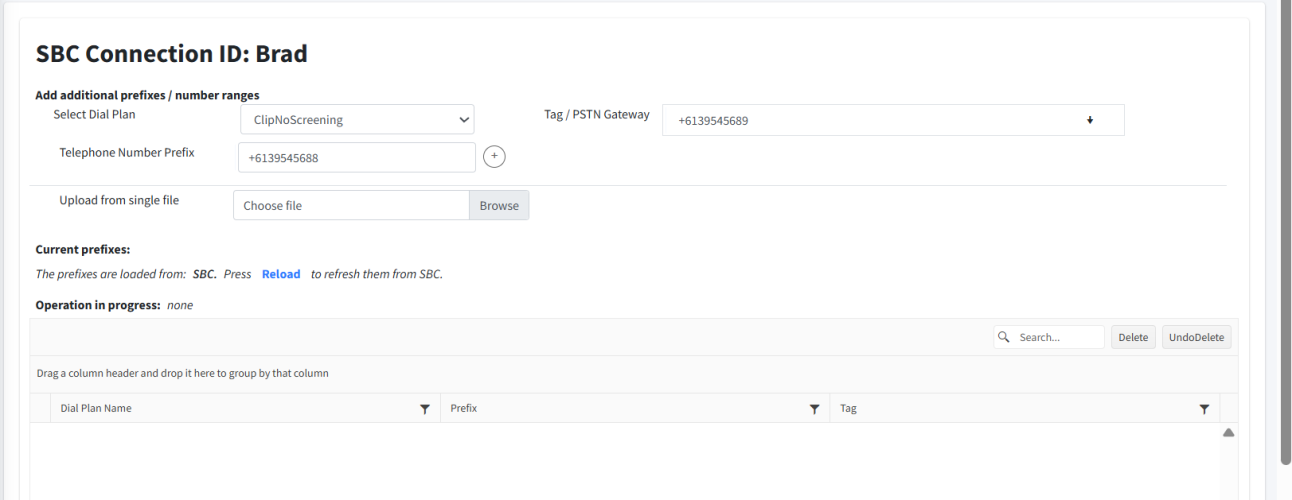
From the Select Dial Plan drop-down, select the ClipNoScreening dial plan. |
|
4.
|
In the Telephone Number Prefix field, enter the number you want to change or disguise it's Caller-ID and then click  . . |
|
●
|
Calling Prefixes should be configured as follows: "9304" |
|
●
|
All full numbers should be configured in E.164 format with the following validation rules: |
|
❖
|
Country calling code (international). |
|
❖
|
Local telephone number or subscriber number. |
The number has the following structure: [country code][area code][subscriber number].
Example United States Telephone number: +12127881500
|
❖
|
Subscriber number: 7881500 |
End customer operators cannot load number ranges and calling prefixes.
|
5.
|
In the Tag/PSTN Gateway field, enter the number you to display as the Caller-ID. This can be any number, not necessarily in E.164 format. For example, your group Teams number or main Service number. |
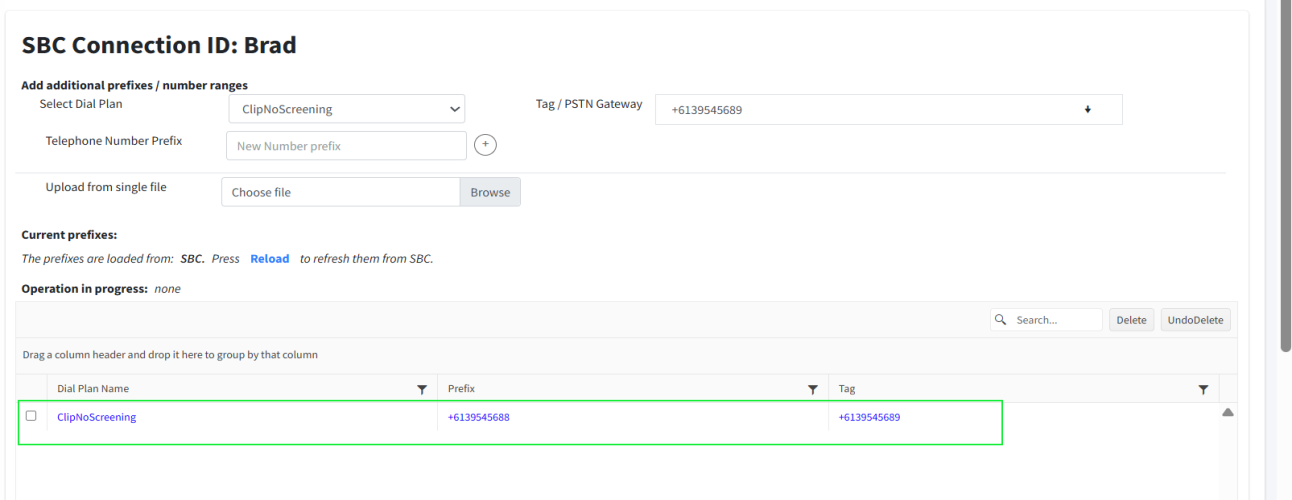
The newly added numbers are displayed in blue in the dial plan table.
|
6.
|
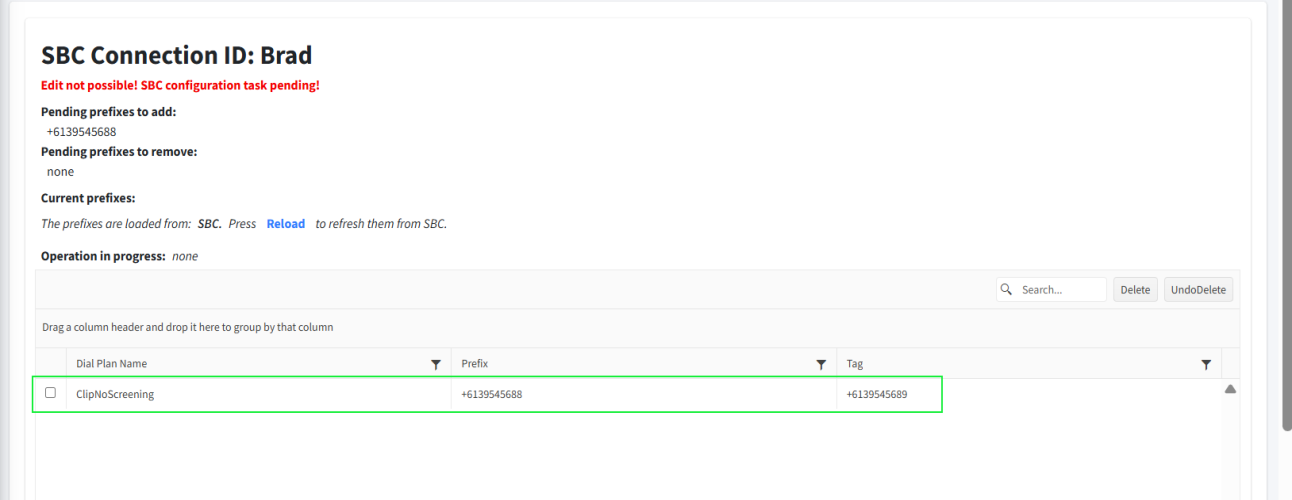
Click Save. The page is closed and the numbers are loaded to the SBC device. When you reopen the page, you see that the numbers that are displayed in blue are Pending Synchronization to the SBC device. Click Reload to refresh the page to view the numbers in the table after they have been synchronized with the SBC. |